
Frequently Asked Questions
General
Do you Have a question that is not answered in the Help files?
Does Rationale require a specific browser?
Rationale supports the latest versions of all major browsers, Chrome, Firefox, Edge and Safari. The tablet version of Rationale only supports Safari on an iPad.
Does computer speed and configuration matter?
Actually, it does. Rationale does a lot of computing operations while working (more with Analyzing then with other functions). Part of that will be done on your own computer. So, with the newest top of the edge systems things will be done a little faster. Rationale Online will be working fine with all regular, modern computer systems.
Do I have to create an account to use Rationale?
To use all possibilities from Rationale you need an account.To try Rationale you can use all functions, but you can't save your maps. Also you can't use tutorials, e-book or export- and print functions.
Can I change my username?
No. You can change all your other information by going to My Profile.
I made a map. Where can I save it?
Click on File in the left toolbar and choose for Save if you want to save the map with the name you already gave. Choose for Save as... if you want to save as a new argument map. If you filled in a name when making a map everything you add or edit will be saved under that name.
I want to edit the name of the map. How can I do that?
Go to My Maps and click on the map you want to edit. It opens in the detail screen. Click on the name (dotted underline) and edit it. Click on the OK –button to save the new name.
I want to delete a map. How can I do that?
Go to My Maps and click on the map you want to delete. It opens in the detail screen. Click on [Delete] on the right and your map will be deleted.
How can I export my maps to use in other programs (e.g. Word)?
See here.
Can I link directly to a map to share with someone else?
Yes, you can. Select in the detail screen the menu at the left of the blue button Private and make your map Public, Unlisted or use Collaboration to invite others. When you choose Unlisted or Public you’ll find an url on the left. Share that link with someone else.
Map Formats
Why map arguments?
Everyone engages in reasoning and argument every day, in their personal lives, on the job, and in school. The human brain, however, is not very good at coping with this kind of complex activity. By contrast, humans have powerful visual abilities to help us navigate around a complex world.
Argument mapping harnesses something we are naturally good at (processing complex visual information) and puts it to work in a domain we are naturally less good at (processing complex abstract relationships). By representing our thoughts and their relationships visually we can understand them more effectively and communicate our ideas more clearly.
Everyone engages in reasoning and argument every day, in their personal lives, on the job, and in school. The human brain, however, is not very good at coping with this kind of complex activity. By contrast, humans have powerful visual abilities to help us navigate around a complex world.
Argument mapping harnesses something we are naturally good at (processing complex visual information) and puts it to work in a domain we are naturally less good at (processing complex abstract relationships). By representing our thoughts and their relationships visually we can understand them more effectively and communicate our ideas more clearly.
How many types of maps can you make?
There are four general mapping formats: Grouping, Reasoning, Advanced Reasoning and Dialog maps. Within each format you can create a map that suits your individual requirements.
What do you use the different sort of maps for?
- Grouping maps are used to create structures and show conceptual relationships between categories, ideas or objects.
- Reasoning maps are used to show the relationship between claims, or sentences that state a contention, reason or objection.
- Advanced Reasoning maps are an extended version of reasoning maps, which allow a greater understanding of multiple claims and evaluation.
- Dialog maps map out dialogs starting with a topic or question.
Why are there different colors for boxes?
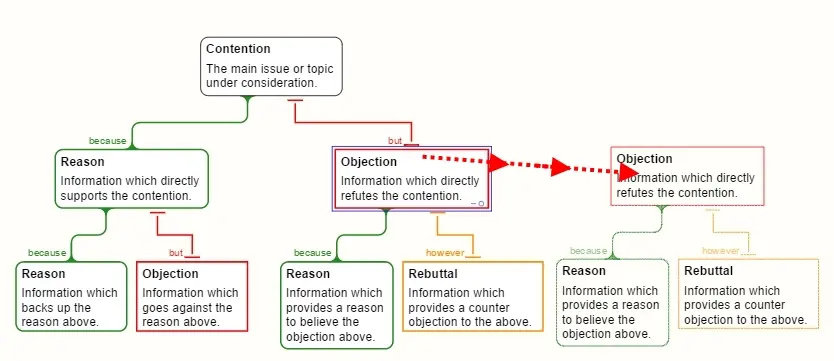
The boxes are shaped and colored differently to enable you to immediately know what sort of box they are - for instance a contention or claim are white, reasons are green, objections are red and rebuttals (objections to objections) are orange. Understanding what sort of box they are helps us to visualize their role in the argument structure. In grouping maps you can also use boxes of different colors where you determine what the colors mean in your map. You can even provide a guide to your colour scheme by dragging a colored "legend" map from the Grouping tab of the Building Panel and filling it in to show what each colour stands for.
Can I have more than one map?
Yes. You can have as many maps on your workspace as you wish and whatever type of map format you need. So you could map out your ideas using a grouping map and then create a reasoning map to represent your position on a matter.
Are all the maps argument maps?
No - grouping maps and dialog maps are not argument maps but a quick way to brainstorm and get ideas written down. Reasoning and advanced reasoning maps are both argument maps because they show the components and structure of reasoning.
What is dialog mapping?
Rationale includes icons and templates for IBIS-style (issue based information-system) dialog mapping. Dialog maps can be used to record and clarify discussions concerning complex questions and decisions. The icons representing parts of a dialogue are located in the "Extras" section of the Building Pane.
Learning and Sharing
What are the Rationale Tutorials?
There are three Tutorials :
Critical Thinking Exercises. These are a set of online exercises designed to help you get started with argument mapping within Rationale. They teach you how to correctly use the different mapping modes, basis boxes, evaluate arguments, and plan essays. https://docs.rationaleonline.com/tutorials/criticalthinking
Argument Mapping. These are online exercises that were originally designed for university students. These are longer than the Critical Thinkling Exercises, and are useful for gaining a more advanced understanding of argument mapping. https://docs.rationaleonline.com/tutorials/argument-mapping
Reasoning for Knowledge. These advanced exercises are designed to help you understand some important concepts used in reasoning and ascertaining knowledge. They are particularly helpful for use with the International Baccalaureate's Theory of Knowledge unit in the Diploma Programme and University programmes. https://docs.rationaleonline.com/tutorials/reasoning-for-knowledge
Are there extra online resources available?
Yes, on the ReasoningLab.com website there is a special section, Learn, where you can find all kind of educational materials, download Guides specifically designed for school teachers or anyone involved in teaching reasoning and argument skills and much more. https://www.reasoninglab.com/learn/
Check also the Public Maps!
For teachers that use Rationale in their classes we have all kinds of educational materials. Contact us when you want to get access.
Can I share maps with other users of Rationale?
Yes, you can. You can send someone a link to a map that is made 'Unlisted', invite others to work on a map in 'Collaboration', or make a map 'Public'. See My Maps: Status Map.
Exporting and Printing
I have two maps on my workspace, can I print these separately?
Yes, choose the option print (Ctrl+P) en from the dropdown Selection choose Map and now select the map you want to print.
Why is the text of my printout so small?
When you print, text size is determined by two things: the size of the paper and the shape of the map (i.e. the number, size and configuration of the boxes). You can increase the text size by manipulating these variables. Try the following:
- Change the size or orientation of the paper (portrait or landscape).
- Hide sections of your map by collapsing branches. You can do this by selecting the "-" or "o" in the bottom right corner of each box.
- Utilize the "font size" option. For instance, you may wish to make basis box text smaller and headings larger.
- "Trim" your boxes available from the context toolbar.
- Manually resize boxes so that the map takes up less space. Usually maps are wider than they are deep, so make boxes narrower and "deeper" at the widest point. If the map is too deep, make boxes wider and "shallower" at the deepest point. To resize a box just drag its edge on the right hand side until you have the dimensions you want.
- Hide icons and indicators (using the settings button form the left toolbar).
- If the order of branches in your map doesn't matter, try re-ordering branches to take advantage of vacant space on the map.
Is there any way to resize all the claim boxes on my map at once?
The 'Trim' button on the right context toolbar removes excess white space from all boxes in a map.
Why are the sentences in my print of a Chinese or Japanese map not broken down?
When you want to solve problems with the break down in the print of sentences in Chinese or Japanese maps, please select the right language.
See also the Help Pages on Exporting and Printing.
Building and Editing
How do I build maps?
You can build maps in three ways:
- by dragging items from the building panel and dropping them onto the workspace.
- by right-click (click the RIGHT mouse button after clicking anywhere on the workspace).
- by Keybord shortcuts.
How do I add and edit text?
To add text select the box you want to type in with a single click, and type. To view the cursor and reposition it to edit text, simply double click or press F2.
You can paste text directly in a box on the workspace by clicking on the box (your cursor is blinking in the box) and paste the text.
You can drag and drop text to the Scratchpad and drag and drop it from here to the workspace. A box including the text will be made automatically. You cannot drag and drop text directly to the workspace.
How do I clear text from a box?
There are several ways to do this:
- Click once on the box and hit backspace to clear it entirely, or
- Double click the box then backspace letter by letter, or
- Double click the box and use your mouse to highlight unwanted text then use the delete key.
When copying an argument with supporting reasons below it [a branch], how do I select those reasons to be copied as well?

Rationale's default is to copy what you have selected and everything below it. You can also copy a box, branch or entire map by holding down 'Ctrl' when you drag a map.
How do I move a branch from one location to another?
When you select and drag a box which has other boxes (reasons or ideas) underneath, they will also move and remain in the structure that has been created. So to move a branch simply select the top box and drag and drop it into the new position.
There are too many empty claim boxes that I don’t intend to use. How do I get rid of them?
If the boxes are not attached, select the boxes to be deleted individually and click on the "Delete" icon in the "home" tab. If the boxes are connected, press "Delete" and all the boxes under the selected one will be removed. If you wish to delete a connected box and no other, select the arrow under the "delete" icon and choose "Selection only".
Can I change font style and size?
Size yes, font no. You can alter the size of the text by selecting The "font size" icon in the EDIT section of the HOME tab. There is one exception to changing the font style - you can make the first words in a claim box, or a whole claim box, bold in style. To do this, type an asterisk (*) before and after the text you want bolded.
Can I include a line break inside a claim box?
Yes. The keyboard shortcut Shift+Enter allows you to add a line break within a box while in Edit mode.
How can I make each claim box larger or smaller?
As you write in the box, it will resize automatically. To resize manually, select the box and drag a side, base or bottom right-hand corner to adjust the size.

Is there a quick way of adding reasons or objections, apart from the templates?
Yes. First create and select the box type you want duplicated and then perform one of these two quick shortcuts. For duplication underneath: Press the "Insert" key on the keyboard. For duplication across the same level: Press the "Enter" key on the keyboard.
I deleted a box and everything below it disappeared - why?
The "Delete" icon will delete a selected box and everything below it unless you choose "Selection Only" which is located in the drop down menu beneath the "Delete" icon. If you have deleted what you did not want to lose, simply click on the "Undo" icon next to "Delete".
My workspace is filled with mess! How do I delete all these maps?
Select the workspace and choose the delete button on the toolbar at the left bottom.
Can I change one kind of box into another?
Yes, you can change one kind of box into another by selecting the desired box, select the box and choose the button change box on right context toolbar.
Your options for changing types will depend upon whether the box you're changing is part of a map or not, and what kind of box or map format you're working with. A single white box on the workspace can be turned into a reason, or an objection, or a basis box, or a sticky note. A reason box in the middle layer of your argument map can only be turned into an objection.
Can I change one kind of map into another kind?
You cannot mix map formats to put reasoning boxes in a grouping map, for example. You can turn an entire map into another kind of map. You can change an entire grouping map to an argument map. This may be done by attaching it to an existing reasoning or analysis map or by selecting the relevant map format in the “Change Map” button on the right context toolbar.
Can I undo my last operation?
Yes, you can undo and redo actions by clicking the icons on the bottom left toolbar, or using the shortcuts Ctrl+Y en Ctrl+Z.

My boxes automatically attach themselves in places I don't mean to put them. Can I stop them from doing this?
Yes, hold the "Shift" key while you drag and drop and your boxes will not join automatically. This is handy if you want to sort boxes into related groups before you start to connect them to maps.
I have sticky notes attached to my map but I want them free on the workspace instead. I tried to drag them off but they just get longer connectors. How do I detach them?
To detach a sticky note, select the note and select Detach from the right context toolbar. Otherwise you can use cut and paste to move it.
I was working with a reason and a grouping map and I accidentally moved one near the other, now they are attached and they are both reason maps. What happened?
This is a "morphing" feature. The basic rule is - you cannot have a map which is made up of different sorts of boxes. This means that if you move an item box from a grouping box onto a reason box in a reasoning map, then the item box will become a reason box. If you do not want to do this, then use the undo option.
What happened to the 'push down' button from earlier versions of Rationale?
You don't need it any more! We've changed the drag and drop behavior of boxes. Now you can insert a box at an intermediate level simply by dragging it there, which will push down the boxes underneath.
 |  |
|---|
Workspace and moving around
Can I change colors for the boxes?
You can only change the colors of boxes in grouping maps. You cannot change the colors of argument maps, with good reason. In argument maps the colors of the boxes signify the sort of claims they represent - green for a reason and red for objections (like go and stop). A rebuttal is orange.
These colors create important conventions which ensure that other people will intuitively understand whether claims are reasons, objections or positions. Likewise, you will be able to read other maps because you will recognize the convention or standard the colors represent.
Can I change my workspace colour?
No, not at this time.
Can I turn off the overview window at the top right of the workspace?
Yes. Go to the settings page by using the button settings on the left toolbar and choose Overview off.
Why do claim boxes go blue when I drag another claim over them?
The boxes are outlined with blue to show they are selected. When dragging a box, you will also see a purple line appear which shows you where the box will be dropped. You can drop boxes below or above the blue box.

The argument map is too large to fit on the screen. How do I zoom out to see everything?
You can zoom out with the aid of the mouse wheel, by choosing the “Show all” button or the scale bar in the bottom right hand corner. You can also use the overview window view to locate maps on your workspace and choose the “Zoom to Fit” options in the “View” tab. For instance, you can “Zoom to fit” a map to the workspace, everything to the workspace or everything to the page where “Show Page” has been selected in the “Output” tab.

How can I pan around my argument map?
There are two ways you can pan around your workspace. The overview window (top left-hand corner of your workspace window): this reflects the position of your map/s on your workspace. You can move the cursor into this window and your map will move in accordance with your cursor movement. When your map/s is larger than your workspace you will see the workspace in view as a highlighted section of the overview window.
You can click and hold the workspace and pan around the screen with your mouse.
I have a number of large maps spread about on my workspace. How can I move quickly from looking at one to seeing another that is presently off screen?
There are two ways to do this.
- Click on the 'Next Map' button at the bottom of the screen to go to the next map on the right.
- Navigate by clicking on the map you want in the overview window in the top right-hand corner of the workspace.
I clicked on my map and the box shrunk and all the contents vanished!
You clicked on the hide "o" feature on the bottom right corner of a box. To show the contents of the box again, click on the box.
How do I use Hide/Show?
Nodes can be hidden in two ways;
- to hide the contents of a node, but keep the node visible, click on the circle in the bottom right hand corner of the box. This will also hide any boxes that are beneath that node.
- To hide the node completely, click on the "-" symbol. To show hidden boxes, click on the "+" symbol.
Something on my mouse made the screen go in and out - what was it?
This was your mouse wheel which allows you to zoom in and out of your workspace. Fun isn't it?!
What's the scratchpad for?
The scratchboard is just like a clipboard - somewhere to keep ideas, reasons, or a document. The great benefit of this scratchpad is that you can highlight a sentence and drag and drop it onto the workspace.
Immediately the text will be turned into an item box if dropped onto the workspace or into a box appropriate to the map format to which it is being attached. Information in the scratchpad is saved with a file.
What do I use sticky notes for?
Sticky notes are useful for extra pieces of information, references, quick notes or reminders. You can attach sticky notes to boxes to comment on them. You can even use sticky notes to brainstorm an issue by connecting sticky notes to other sticky notes.
What are map references?
A way of clearly identifying specific locations on your map to others, especially for presenters in professional settings and teachers in education settings. This is especially useful for very large argument maps.
Why do the map references use a different numbering convention to the text outline?
Both the map referencing and the outline use numbering systems that are designed to be as easy to understand as possible. We found that neither system was sufficient to use in both situations; using the Map referencing convention for the text outline was confusing, as was using the text outline for the map references. This is because the map references are designed to help the reader navigate around the space of the page, where as the text shows the line of reasoning.
Images and Hyperlinks
Can I add images to my maps?
Yes. You can include an image in any box. Here's a sample grouping map made with images.
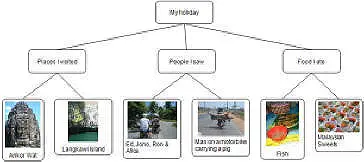
You can add an image by selecting a box and choose the option Insert image from the right context toolbar. You can browse your computer for an image you wish to place into the selected box on your workspace.
How do I resize images?
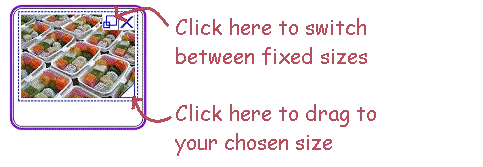
To resize an image in a box, double click on the picture then either:
How do I delete images?
To delete an image on the workspace click on that image and hit delete. To delete an image in a claim box select the whole box and delete it. Alternatively, if you only want to delete the image while keeping the box or other contents then double click on the image then select the X icon in its top right corner.
Can I add hyperlinks to my map?
Yes, you can add hyperlinks to any node on your map. Click on the hyperlink to open in your browser.

How do I add a hyperlink to my map?
To add a hyperlink, click on the hyperlink option on the right context toolbar and add in the address and description. Alternatively, you can drag and drop a hyperlink into a box.
Miscellaneous
What is the "Flip Map" button for?
The "Flip Map" button changes the orientation of a map. You can flip grouping maps and reasoning maps so that they are oriented left-to-right as opposed to the usual top-to-bottom map layout. Do this by selecting the map then clicking the "Flip Map" button.

Can I flip Advanced Reasoning maps?
You cannot change the orientation of Advanced Reasoning maps at this time.
What is the ghost text that appears when I select an empty box on the workspace?
This text is an editing hint that tells you what type of material to enter in that box.

How can I resize a claim box?
You can resize claim boxes by grabbing the bottom right corner of a box and resize height and width at the same time.
What are templates?
There are two types of templates in the Building Panel.
 | Templates in the Grouping, Reasoning and Advanced Reasoning panes are pre-drawn blank maps you can use to quickly create a structure. Drag and drop the one that most resembles the structure you want, then modify it as you require. |
|---|
 | Templates in the Essay Planning tab are used for planning essays, where Rationale generates text to be exported to another program. |
|---|
Can I make more templates?
At this stage you cannot make more within Rationale itself. However, you can make template files available on the internet, e.g. in Public Maps or by sharing links.
I want to print or export a map and nothing happens!
Probably your browser blocks pop-up windows. Change the settings in your browser and you will see the map in a new window in your browser.
Tablet
When you work on an Ipad, use only Safari as your browser.
- To add a box from the Building Panel on the Workspace:
- select a box from the Building Panel with a single-tap
- give a single-tap or a short swipe on the Workplace at the place where you want to add the box
- Double-tap on the Workspace to make a standard box
- Single-tap to select an existing box on the Workspace or in the Building Panel
- To de-select a box on the Workspace, give a single tap on the Workspace
- Double-tap on a box to add or change text
- Change the position of a box or the Workspace by dragging it
- Change the position of an individual map on the workspace by dragging the box at the top
- Give a long-press on a box to open a sub-menu
- Zoom in or out by pinching (moving thumb and index finger to or away from each other)