
Quick Start
What does Rationale do?
Rationale is a tool to build critical thinking skills. It achieves this by displaying information and reasoning in structured maps. This conveys information quickly and intuitively. Rationale makes the critical thinking process clear by providing tools to:
- Sort and structure information and ideas (grouping maps)
- Identify components of arguments (reasoning maps)
- Provide details of evidence sources (basis boxes)
- Show evaluation of claims through colour and icons (evaluation tab)
- Identify assumptions and co-premises (advanced reasoning maps)
- Communicate with essay planning templates (essays panel)
- Provide feedback notes
What sort of maps does Rationale provide?
Rationale has four map formats, including reasoning and advanced reasoning maps that create argument maps. You can have different types of maps on your workspace simultaneously.
Grouping
Organise information by ordering and grouping items or ideas.

Reasoning
A simple and accessible form of argument mapping that enables you to:
- map out reasons for and against a contention
- evaluate their strengths and weaknesses
- Identify sources of information

Advanced Reasoning
A more detailed and precise form of argument mapping that enables you to:
- identify individual premises, including unstated assumptions
- distinguish between the acceptability of premises and the validity or strength of inferences.

Dialog Maps
An easy mapping technique to brainstorm, show options, pros and cons and consequences. You will locate the dialog boxes in the "Extras" panel.

Basic navigation
Building Panel
Click on the labels to use different formats and features.

Workspace
Create more space by pulling in and out the vertical blue bars adjoining the building and text panels. The cursor will change as you pass your cursor over them. Select and manipulate the panel size.
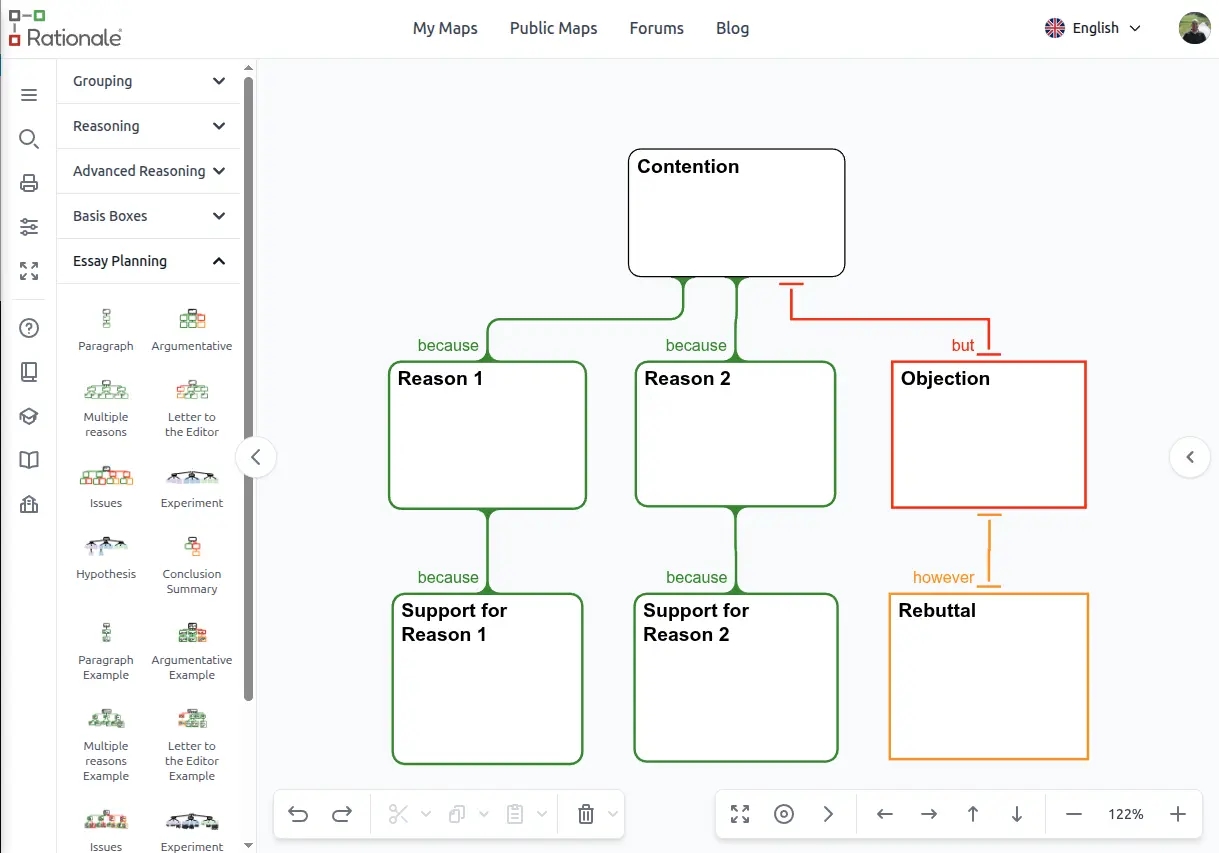
Text Panel
When you're not using a text, explore or web feature, close the text panel (button on the bottom right side) to create more workspace.
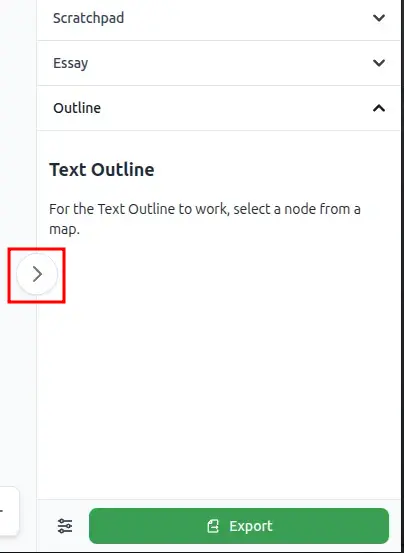
Building maps
- Choose the map or feature of your choice by clicking on it in the building panel.
- Drag and drop boxes or templates from the building panel to the workspace.
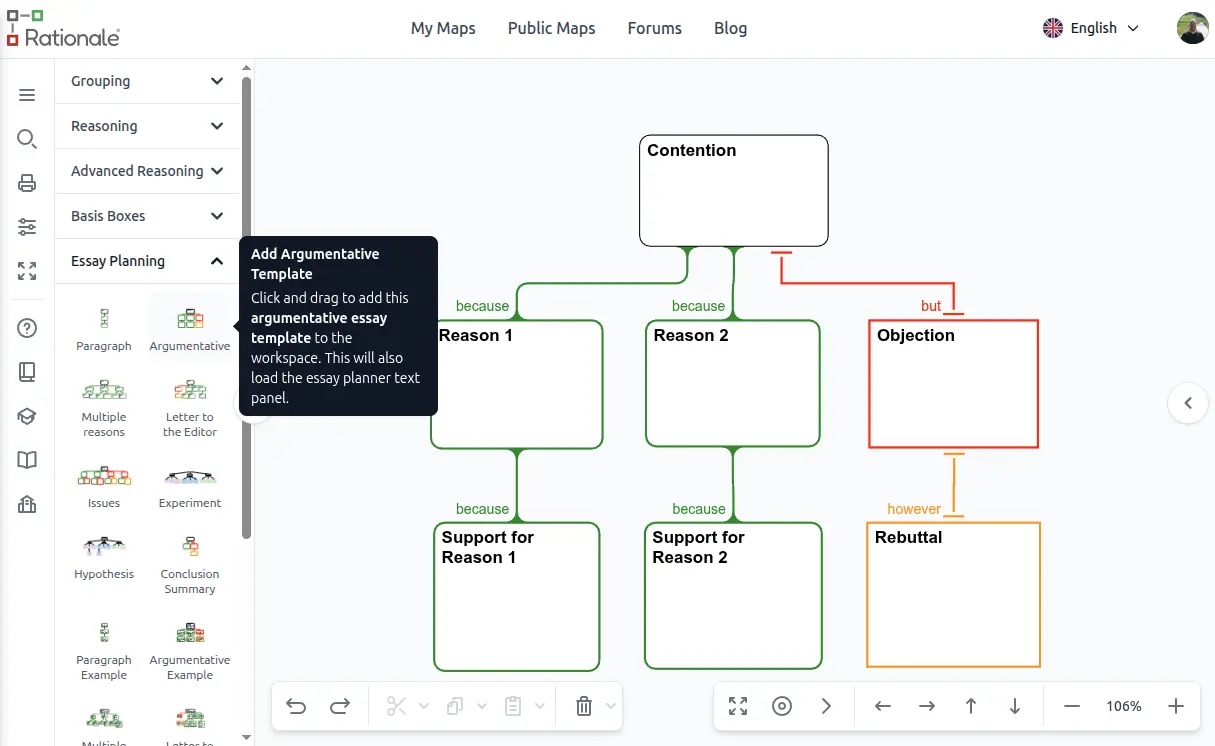
- Add additional boxes until you see the purple insertion point. This indicates where it will be dropped. The box that it will attach to will have a blue outline. There is no need for connector lines, Rationale creates these automatically. You can drag and drop single boxes or whole branches to re-arrange the structure of maps.

Editing boxes
- Select a box to type in text.
- Double click or press F2 to edit.
- Use ENTER or ESC to finish.

Duplicate boxes quickly
- Select a box on the workspace and press ENTER ot create more boxes of the same type.
- Press INSERT to insert a new box underneath your selected box.

Cut, Copy and Paste
Je kunt knippen, kopiëren en plakken met behulp van de pictogrammen op de werkbalk linksonder. You can cut, copy and paste by selecting the icon from the toolbar on the left bottom. For editing and copy/paste of text, see the Rationale FAQ: Building and Editing.

Change box and map types
Note: you cannot combine different map formats.
Select your box that you want to change. Choose the Change Box option on the right context toolbar. This will provide you with the box types that the selected box may be changed to.
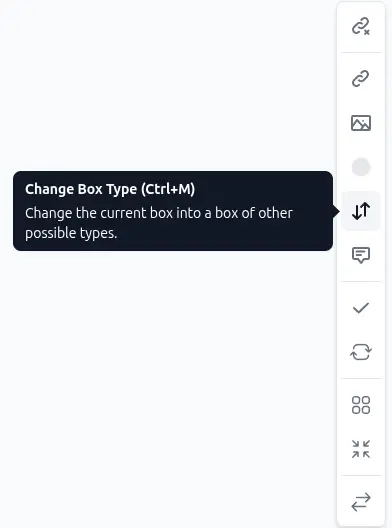
Select your map on the workspace. Choose the Change Map option on the right context toolbar and select the map format you want to change to.

Add sticky notes
Drag sticky notes from the EXTRAS section in the Building Panel.
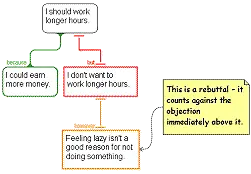
Sticky Notes can float freely on the workspace, or you can attach them to any box on a map - including another sticky note. To attach a sticky note, drag and drop it onto the box you want to attach it to. Another way is to click on a box and give CONTROl+A. To detach a sticky note, right click on it and select DETACH from the menu.
Zoom, Pan and Scroll
To move around your workspace
Click on an empty part of the workspace (holding down the left mouse button so that the cursor turns into a cross with arrowheads), and drag the mouse.

To see what's outside your visible workspace
Click on the overview window to pan to selected area.

To navigate around your map/s and workspace
Use the arrows at the bottom of the Rationale window to move around the workspace. Fit everything on the workspace by selecting 'Show All' or focus on a single map by selecting 'Show Map'. The 'Next Map' button allows you to move to the next map working left to right, top to bottom.

To zoom
Zoom in and out using the slider on the bottom task panel or use your mouse wheel.

Evidence Boxes
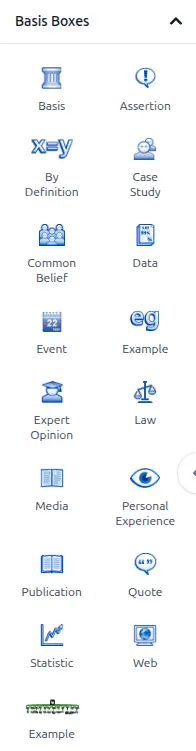
Use the basis boxes to identify the basis or source of a claim. Choose the appropriate box and add details to it.
Evaluate arguments
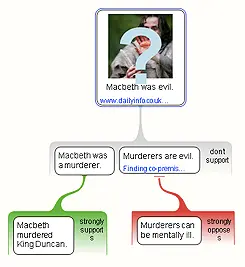
Colour and icons in your map provide a visual indication of how you have evaluated the claims and basis boxes. Use the option 'Evaluate' on the toolbar on the right.

Judge the strength of your selected box. The evaluate ribbon will highlight the choice available for your judgment.

Advanced reasoning maps provide the option to evaluate the claims and the strength of the reason as a whole.
Plan and export essays
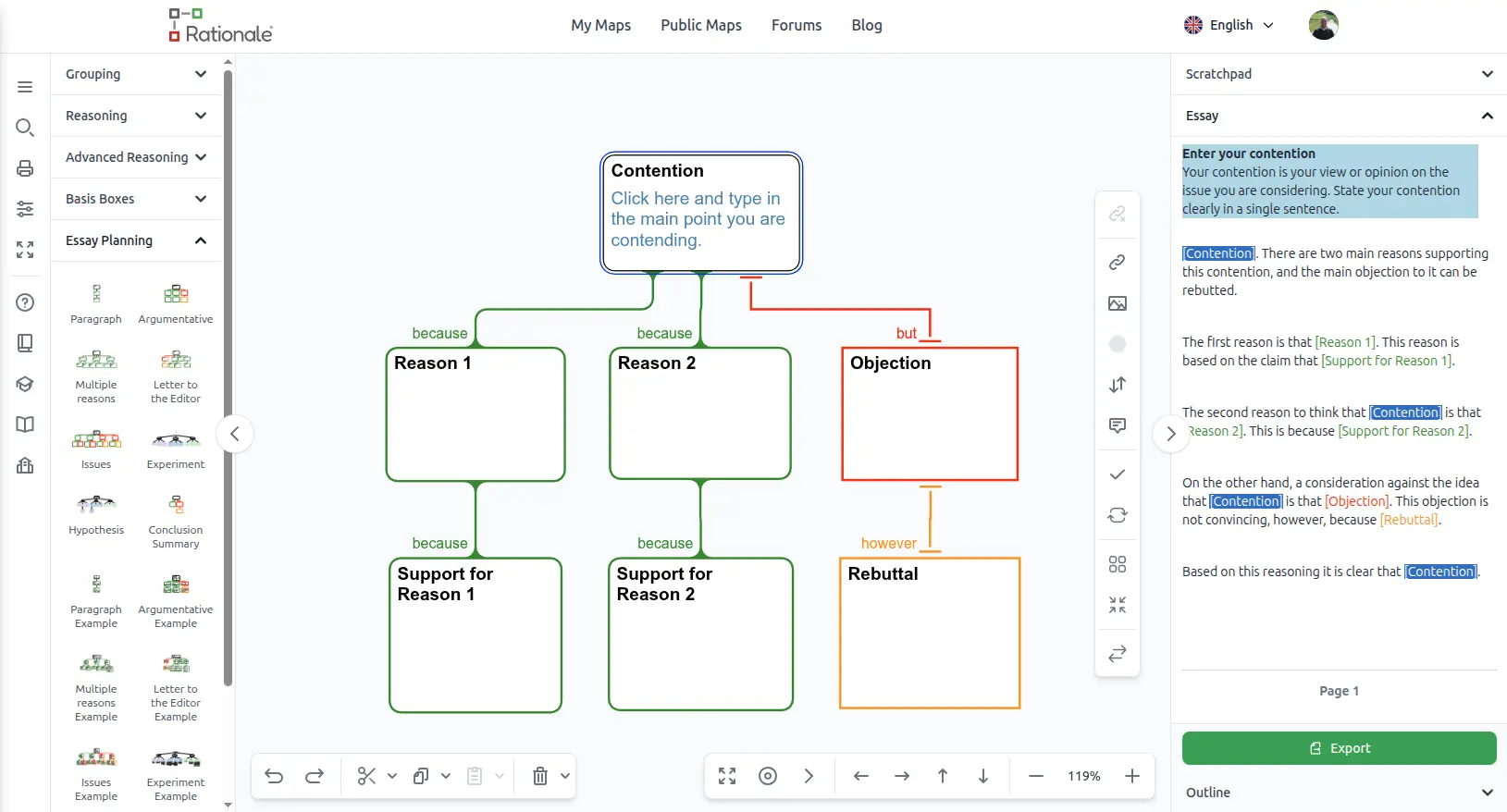
Select the ESSAYS section in the BUILDING PANEL. Drag out a template and the TEXT PANEL will automatically open. Follow the instructions to create a plan and watch your essay taking shape in the text panel. When you have completed your map, select the EXPORT button on the TEXT PANEL screen and the essay will open as a word processing document. This will contain further guidelines to assist you complete a structured and well reasoned essay, letter, hypothesis or summary.
Insert an image
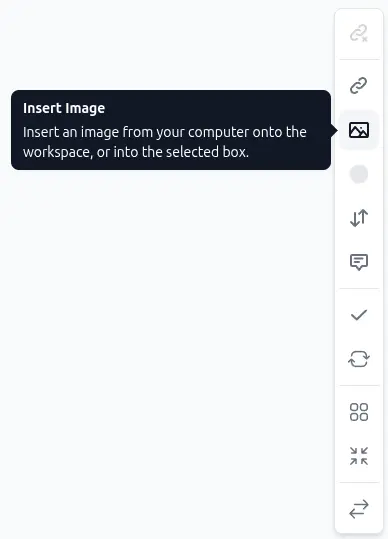
You can add an image by selecting the box and choose the option 'Insert Image' on the right context toolbar.
Add hyperlinks
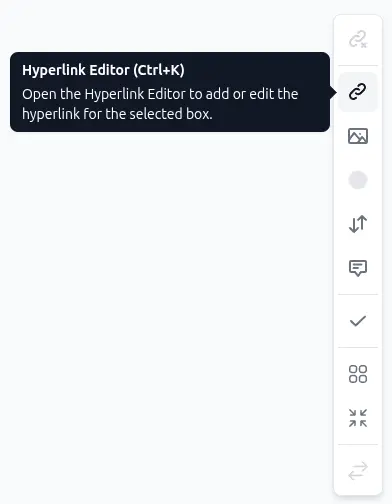
Add a link or edit the link details by choosing the box and use the option 'Hyperlink Editor' on the right context toolbar. You can also use the shortcut Ctrl+K.

Hide and show
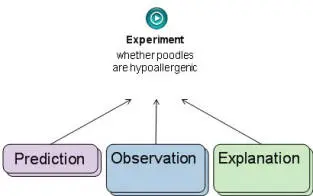
It's very handy to "fold up" branches of your map to focus attention on particular lines of reasoning or key themes. It's also a useful tool to collapse sections of a large map for printing purposes.

Move your cursor over your map and you will see the "+" and "o" appear.
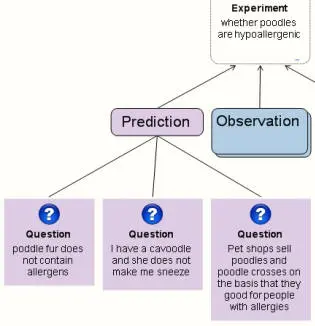
To SHOW the boxes underneath a selected box, click "+"

To HIDE the branch underneath a selected box, click "-"

To reduce the boxes completely click "o". When you select each box it will open and show the contents. This is an excellent tool for presentations.
Print
Use the shortcut Ctrl+P or the print button on the left toolbar.
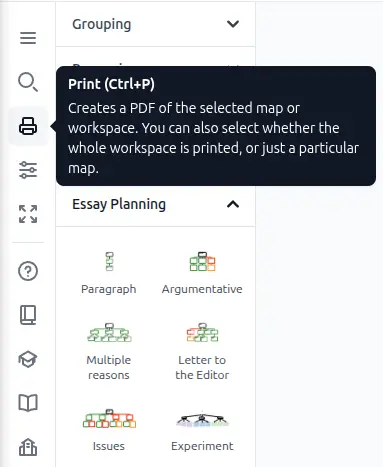
There will be a Print preview shown. Rationale supports printing your map(s) on one or multiple pages.
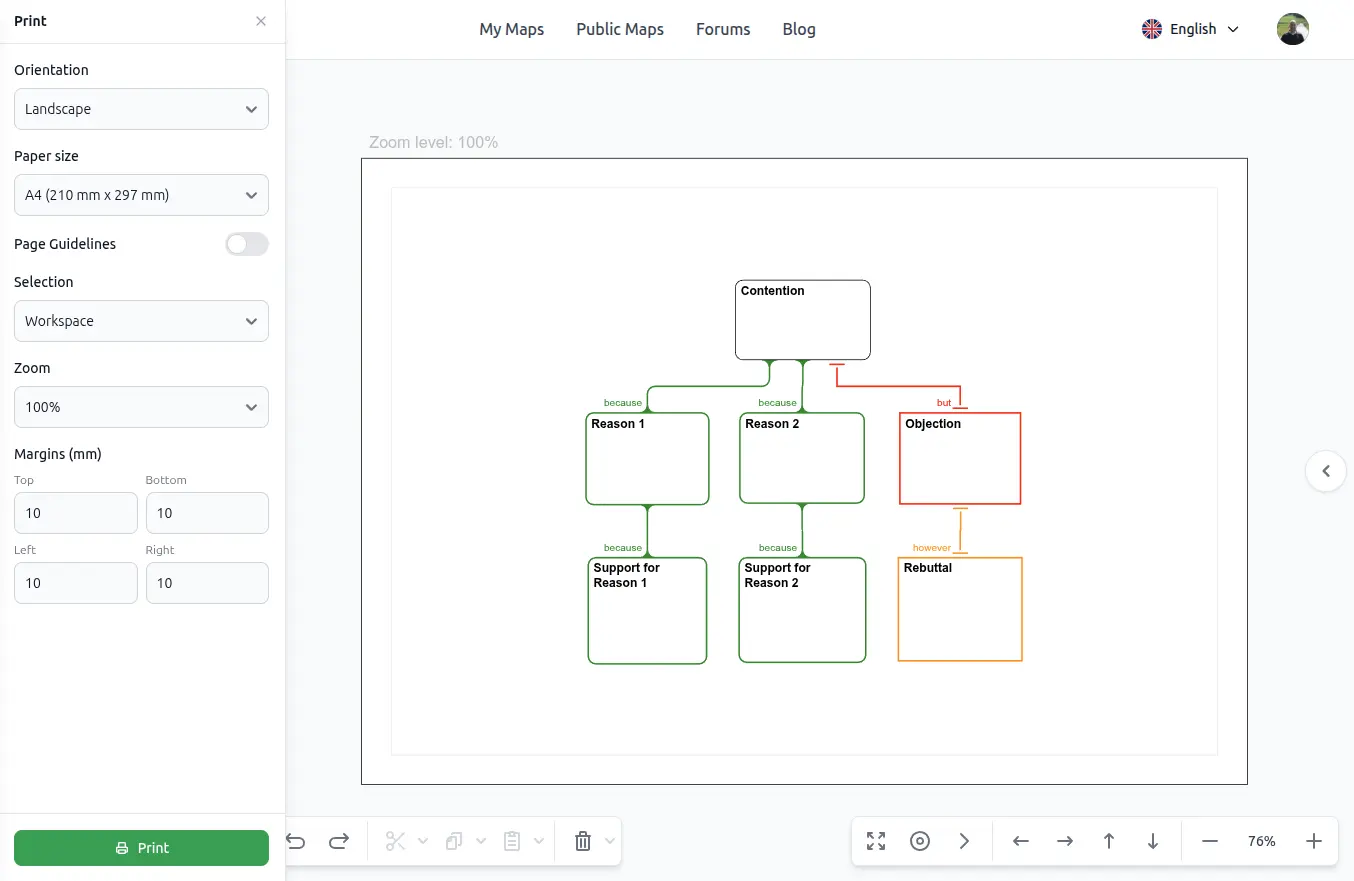
Use the Print buttton on the bottom to print your map.
How to give feedback: sticky notes

To aid feedback from a teacher to their student, sticky note feedback notes are available on most building panels. You can drag and drop the note just like any other box.
Another way to add a note to select a box and choose Add a note on the right toolbar, or use the shortcut Ctrl+A.
Need more help?
There's plenty of information in these helpfiles, Public Maps and in the Rationale Guide. You can also visit our website ReasoningLab for more help, resources and support.